

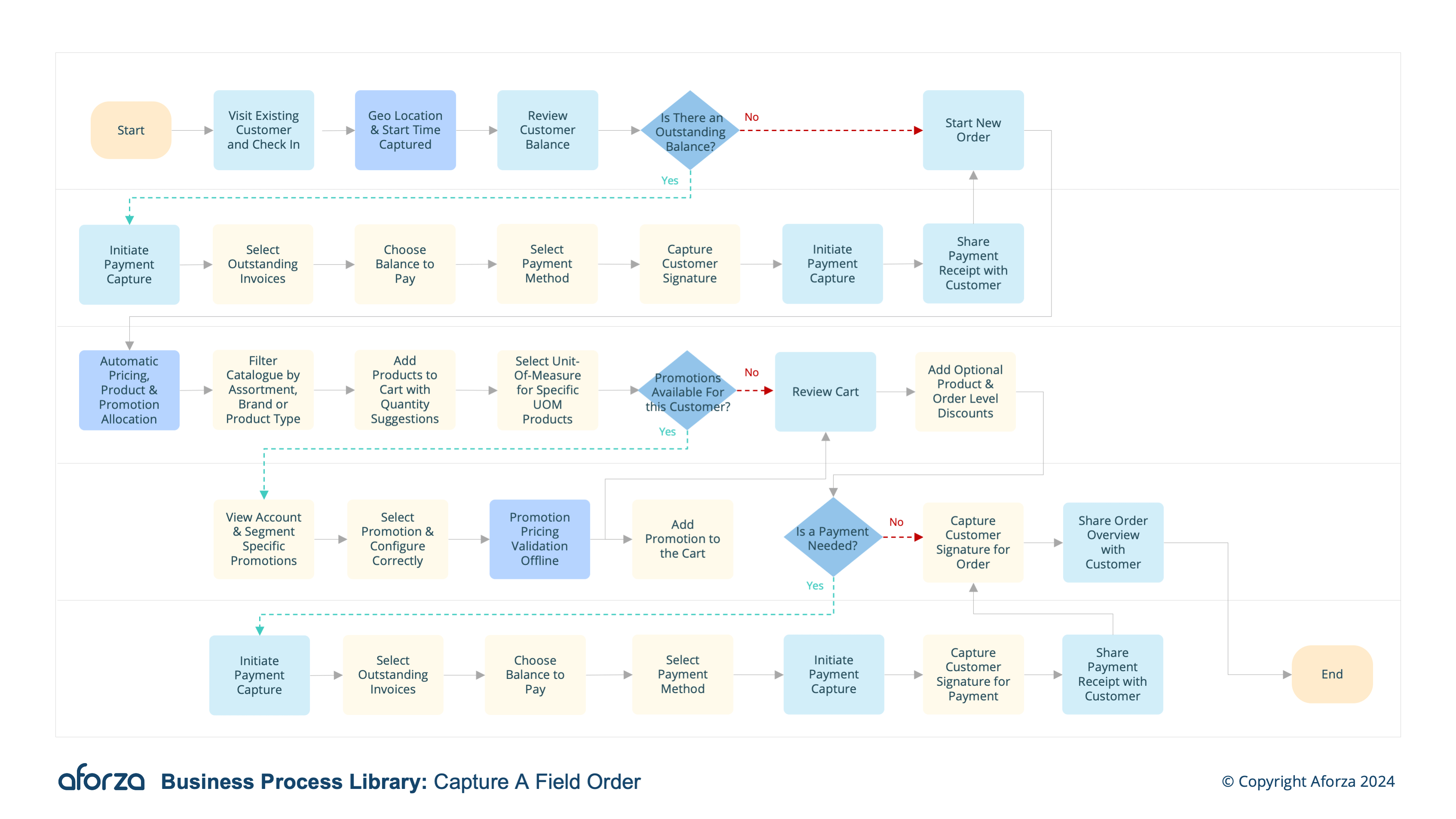
Business Process Overview
- Check Into Visit and Confirm Location: Verify the field user’s presence at the correct location.
- Review Outstanding Balances: Check previous orders and settle any unpaid balances by taking a payment.
- Start New Order: Select products from assortments available to the customer.
- Add Promotions: Add available promotions specific to the customer with perfect pricing.
- Add Recommended Products & Finish Order: View suggested products, complete the order, and take a payment.
This process guides the field user through verifying their location, reviewing outstanding balances, starting a new order, adding promotions, and finalizing the order with suggested products. By incorporating customer-specific assortments, promotions, and recommended products, this process not only enhances order accuracy but also maximizes sales opportunities. The ability to take payments on-site further improves the efficiency and convenience of the transaction.

1. Check into Visit and Confirm Location
This step ensures the field user is at the correct customer location before starting the order process.
- Log into the mobile application.
- Confirm the visit location using geolocation.
- Verify presence at the specified customer site.
- Start the visit timer for tracking purposes.
- Confirm the correct customer contact at the site.

2. Review Outstanding Balances
This step involves checking and settling any unpaid balances from previous orders.
- Access the customer’s account details.
- Review any outstanding balances from previous orders.
- Discuss payment options with the customer.
- Process payments for any unpaid balances.
- Update the account to reflect settled balances.

3. Start New Order
This step involves selecting products to include in the new order.
- Access the product catalog in the mobile application.
- Filter products based on customer group hierarchy, specific customer needs, or segment.
- Add selected products to the order cart.
- Review product details and quantities with the customer.
- Confirm the product selection before proceeding.

4. Add Promotions
This step includes adding any promotions available to the customer.
- Check for any active promotions specific to the customer.
- Apply eligible promotions to the selected products.
- Ensure accurate pricing with the applied promotions.
- Discuss the promotions with the customer to maximize their benefits.
- Confirm the promotions are correctly added to the order.

5. Add Recommended Products & Finish Order
This step finalizes the order by adding suggested products and completing the transaction.
- View recommended products based on the current cart contents.
- Discuss the suggested products with the customer.
- Add any agreed-upon recommended products to the order.
- Review the final order details with the customer.
- Complete the order and take payment if necessary.
- Sync the order details with HQ for processing.