

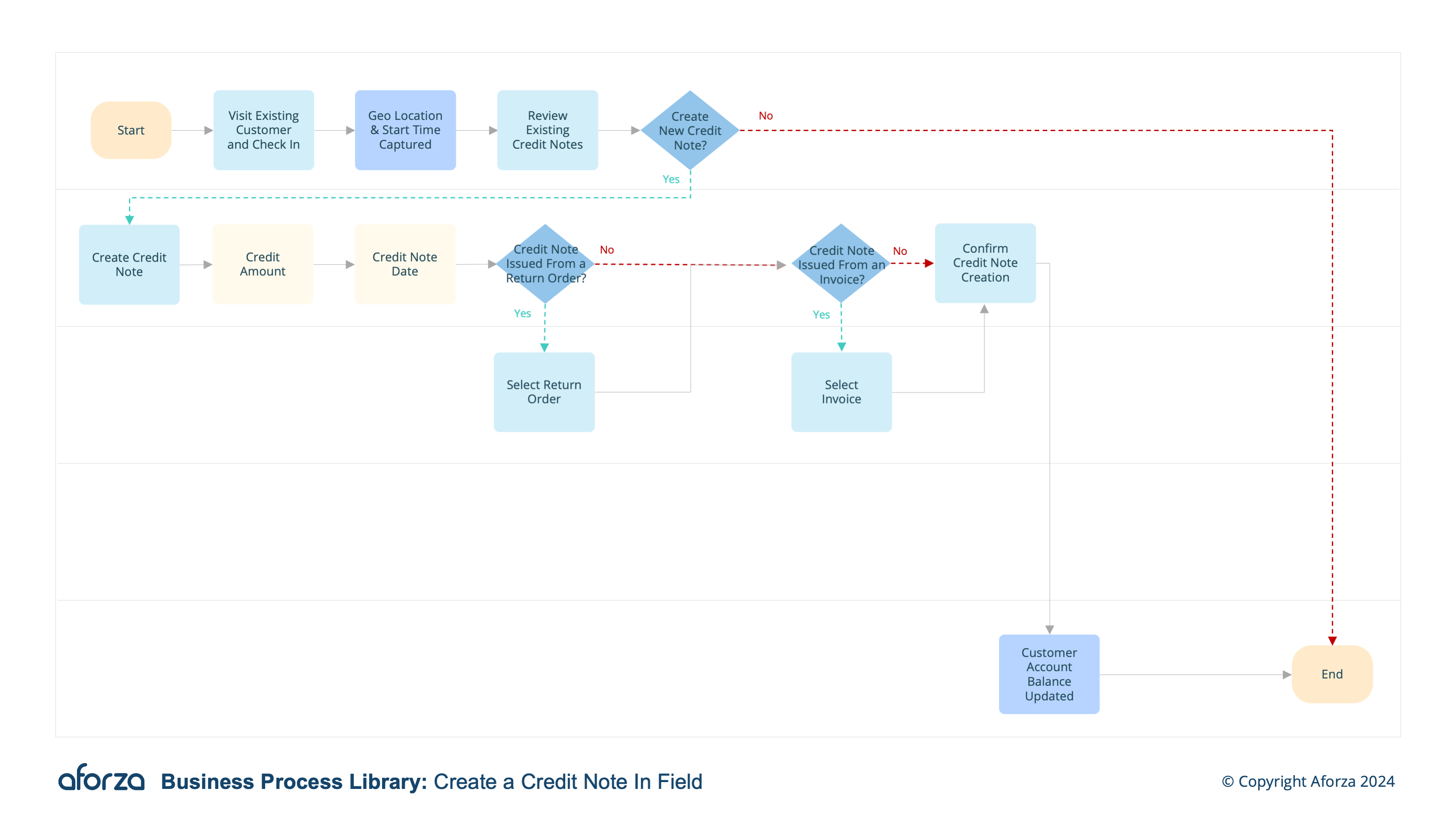
Business Process Overview
- Check into visit and confirm location: Verify the field user’s presence at the correct location.
- Review Existing Credit Notes: Check previous credit notes, the amount, and status.
- Create New Credit Note: Create a new credit note with the date, amount, type, and status.
- Link Credit Note: Connect the credit note to an order, return order, invoice, promotion, or request.
- Update Customer Credit: Automatically update the customer’s credit amount with the new note.
This process guides the field user through verifying their location, reviewing existing credit notes, creating a new credit note, linking it to relevant transactions, and updating the customer credit. By following these steps, field users can ensure precise record-keeping and prompt updates to customer accounts, thereby enhancing customer satisfaction and financial transparency.

1. Create Visit On-Site
This step ensures the field user is at the correct customer location before proceeding with the credit note creation.
- Log into the mobile application.
- Confirm the visit location using geolocation.
- Verify presence at the specified customer site.
- Start the visit timer for tracking purposes.
- Confirm the correct customer contact at the site.

2. Review Existing Credit Notes
This step involves checking for any existing credit notes associated with the customer.
- Access the customer’s account details.
- Review any existing credit notes.
- Check the amounts and statuses of previous credit notes.
- Discuss any discrepancies or questions with the customer.
- Prepare to create a new credit note if necessary.

3. Create New Credit Note
This step involves creating a new credit note for the customer.
- Select the option to create a new credit note.
- Enter the date and amount of the credit note.
- Specify the type and status of the credit note.
- Confirm the details with the customer.
- Save the new credit note in the system.

4. Link New Credit Note
This step involves linking the credit note to relevant transactions.
- Choose the relevant transaction to link the credit note to.
- Options include order, return order, invoice, promotion, or request.
- Confirm the linkage with the customer.
- Ensure all details are accurate before finalizing.
- Save the linked credit note in the system.

5. Update Customer Credit
This step involves updating the customer’s credit amount with the new credit note.
- Automatically update the customer’s account with the new credit note.
- Ensure the customer’s credit amount reflects the new note.
- Sync the updated credit details with HQ for accurate record-keeping.
- Provide the customer with confirmation of the updated credit.
- Complete the visit by stopping the timer and finalizing the data sync.