

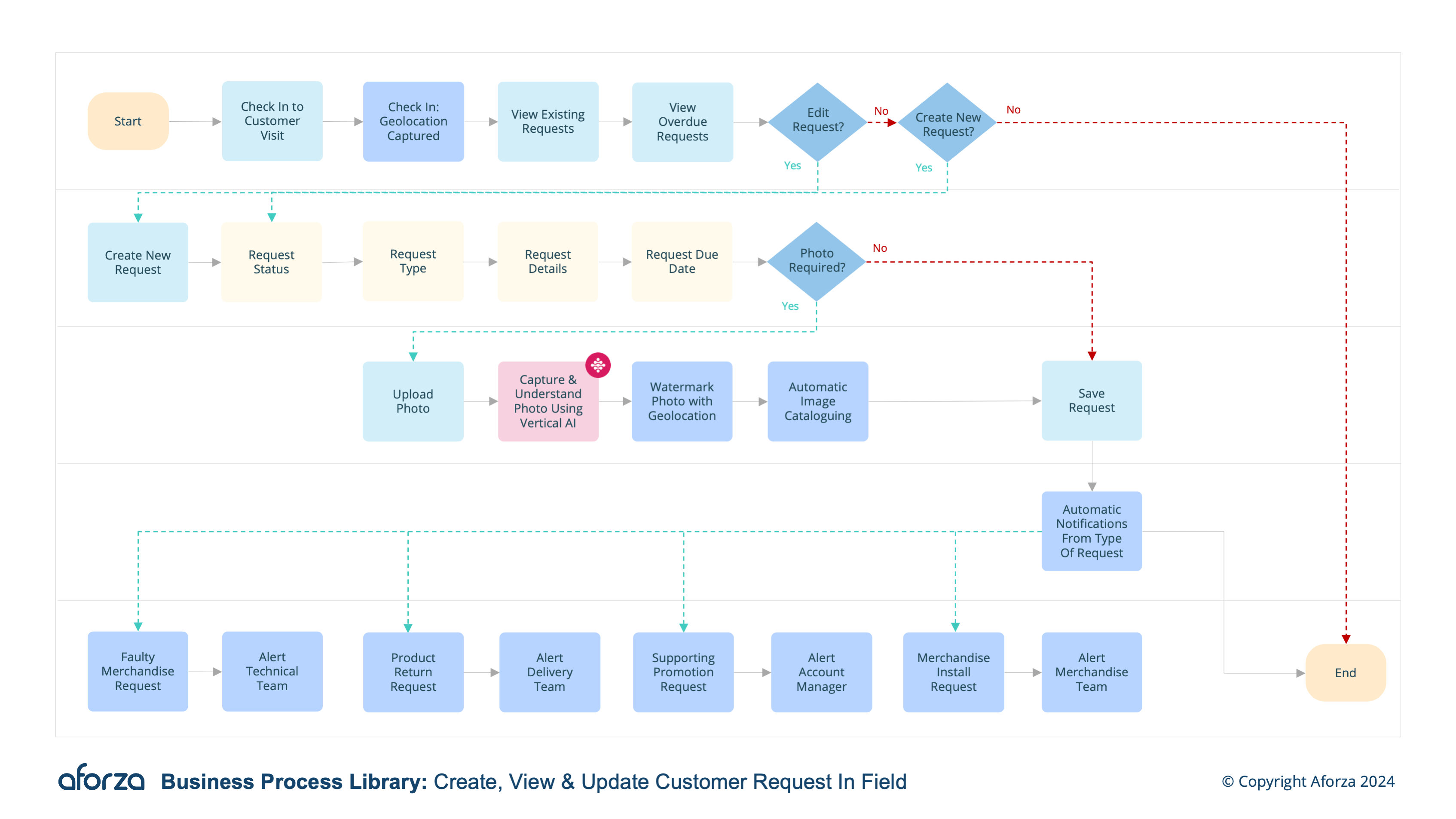
Business Process Overview
- Check into visit and confirm location: Verify the field user’s presence at the correct location.
- Review visit & customer requests: Check status, reason and requested date.
- Update requests: Identify and update any request details, such as the status.
- Create new request: Create new request, with reason, type, status and completion dates for the customer.
- Add image: Add a photo as part of the request.
Key insights captured include the status, reasons, and details of requests, which are vital for tracking and fulfilling customer needs. By following this structured approach, field users can provide timely and accurate responses to customer requests, ensuring that all interactions are well-documented and synced with headquarters for seamless follow-up and resolution.

1. Check Into Visit & Confirm Location
This step is ensuring the field user is at the correct customer location.
- Verify GPS coordinates.
- Confirm check-in with timestamp.
- Validate visit agenda.
- Notify relevant parties of arrival.
- Prepare for customer interaction.

2. Review Visit & Customer Requests
This step assesses the current status and details of customer requests.
- Access the list of existing requests.
- Review the status of each request.
- Note the reasons for the requests.
- Check the requested dates.
- Identify any urgent or overdue requests.

3. Update Requests
This step modifies existing request details as necessary.
- Select the request to be updated.
- Change the status if needed.
- Update reasons or descriptions.
- Adjust requested or completion dates.
- Save changes and notify stakeholders.

4. Create New Request
This step establishes a new customer request with all relevant details.
- Enter the reason for the request.
- Specify the type of request.
- Set the status and priority level.
- Define completion dates.
- Document any additional information.

5. Add Image (Optional)
This step provides visual support for the request.
- Take a clear photo related to the request.
- Ensure the image is relevant and detailed.
- Attach the photo to the request.
- Annotate the image if necessary.
- Save and upload the photo for reference.
Get Started Today
Click here to download the process flow and supporting guide. This download includes the flow that can be installed as an Aforza Guided process, along with all supporting materials to ensure successful implementation and adherence to best practices.