

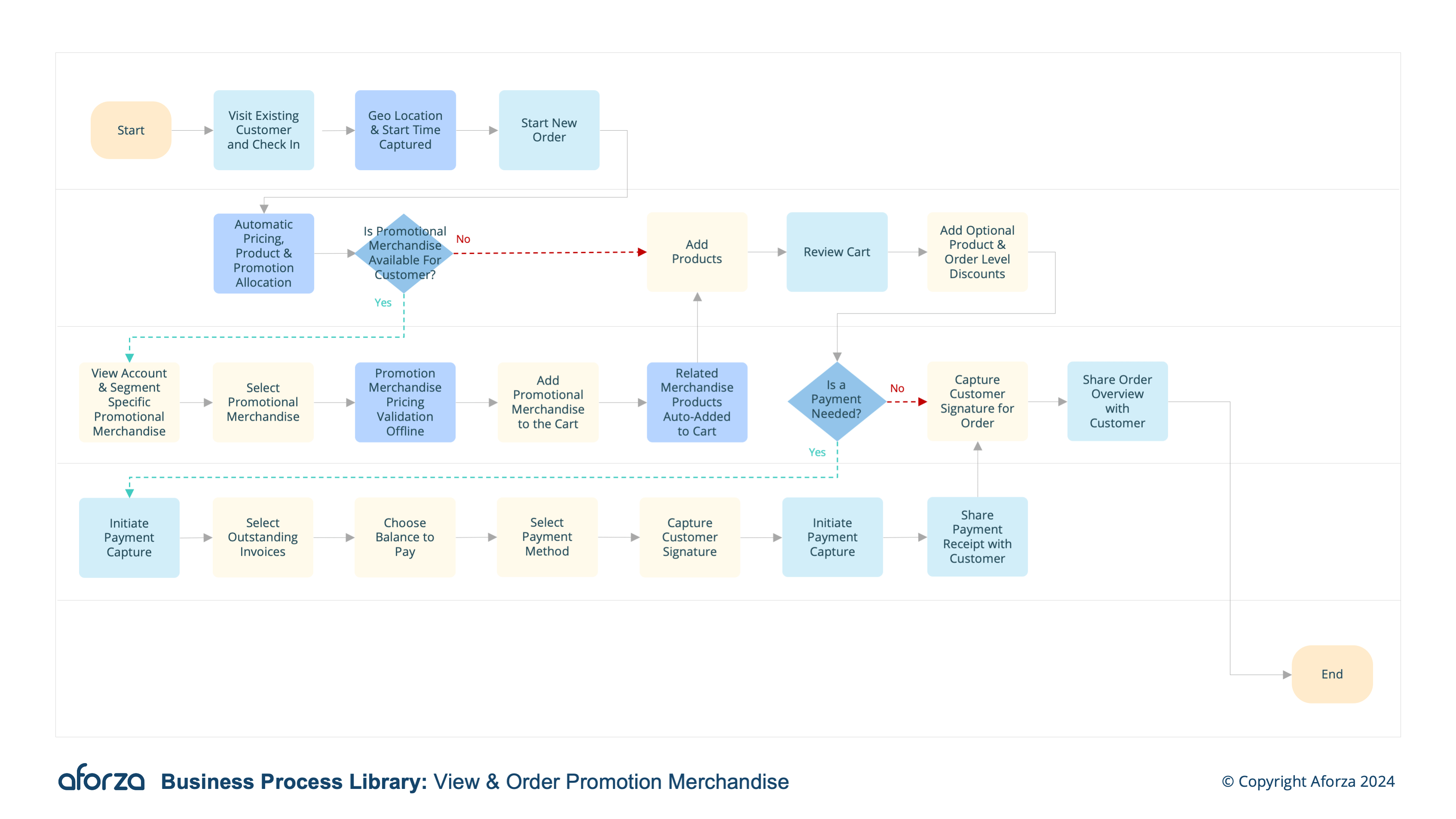
Business Process Overview
- Check into visit and confirm location: Verify the field user’s presence at the correct location.
- Start New Order: Pricing & Promotional Merchandise available automatically calculated.
- Add Promotional Merchandise: Add the chosen merchandise and configure the promotion correctly, ensuring the right pricing and products are selected.
- Auto-add Products: Depending on merchandise chosen, supporting products are automatically added to the order.
- Complete Order: Capture customer signature and if applicable capture any payments needed for the order.
By guiding field users through checking in, starting a new order, adding promotional items, auto-adding supporting products, and completing the order, this process ensures accurate pricing, product availability, and customer satisfaction. Capturing customer signatures and payments as needed solidifies the transaction, providing a seamless and efficient experience for both the field user and the customer.

1. Check Into Visit and Confirm Location
This step ensures the field user is at the correct customer location before starting the order process.
- Log into the mobile application.
- Confirm the visit location using geolocation.
- Verify presence at the specified customer site.
- Start the visit timer for tracking purposes.
- Confirm the correct customer contact at the site.

2. Start New Order
This step involves initiating a new order with automatically calculated pricing and promotional merchandise.
- Select the option to start a new order.
- Access the latest promotional merchandise and pricing.
- Ensure all available promotions are displayed.
- Confirm the details with the customer.
- Begin the order process based on the customer’s selections.

3. Add Promotional Merchandise
This step involves adding the chosen promotional merchandise to the order and configuring the promotion correctly.
- Select the promotional merchandise from the list.
- Ensure the correct pricing is applied.
- Configure the promotion to match customer needs.
- Confirm the selection with the customer.
- Add the promotional merchandise to the order.

4. Auto-Add Products
This step involves automatically adding supporting products based on the chosen merchandise.
- Access the new visit scheduling guide.
- Follow the steps to set up a future visit.
- Select a suitable date and time for the next visit.
- Confirm the new visit details with the customer.
- Save the new visit schedule in the system.

5. Complete Order
This step involves capturing the customer signature and any necessary payments to finalize the order.
- Review the complete order with the customer.
- Capture the customer’s digital signature.
- Process any payments needed for the order.
- Provide the customer with a receipt and order confirmation.
- Sync the order details with HQ and complete the visit.